
a how-to
add a where to buy page to wordpress.
If you sell through shops, people need to know which ones. A where to buy page with a postcode search answers the question your customers keep messaging you about. Here’s how to add one in about half an hour.
before you start
get your list together
You need each stockist’s name and address. A postcode is enough to put them on the map. Phone numbers, websites and opening hours are nice to have. A spreadsheet is the easiest way to keep it all in one place.
step by step
six steps
1. install the plugin
In WordPress, go to Plugins, then Add New, and search for Stockist Locator. Install it and activate it. It’s free, and there’s no API key to set up.
2. add your stockists
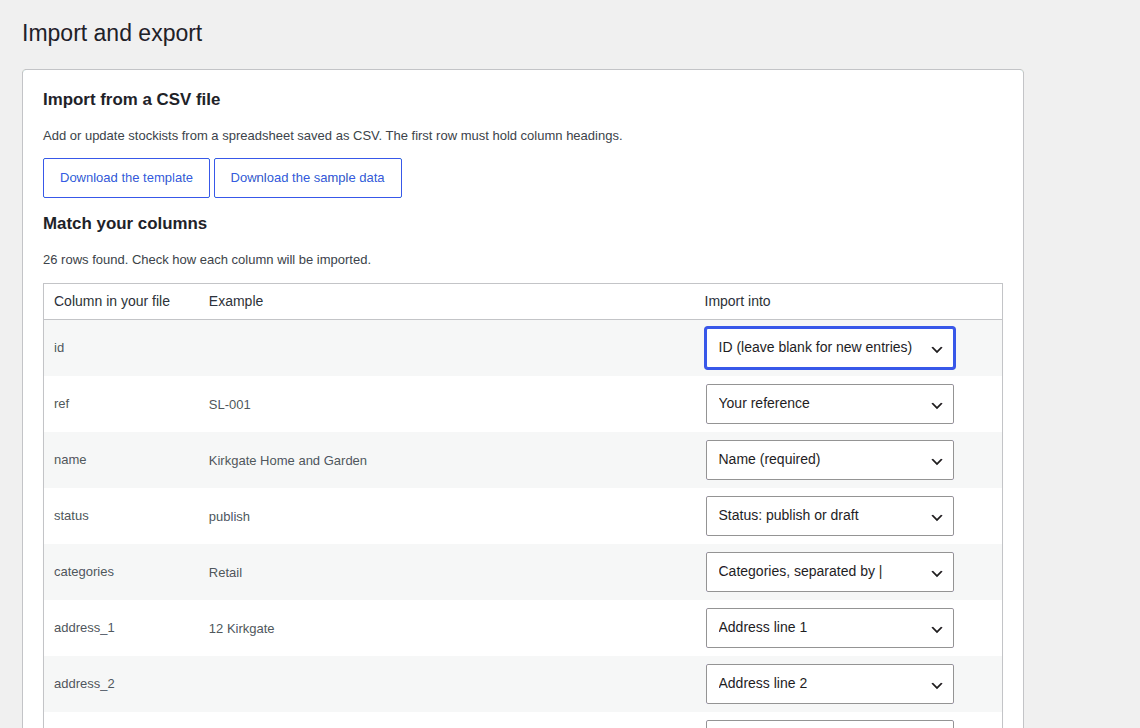
Add them one by one under Stockists, then Add new, or import your spreadsheet as a CSV under Import and export. Rows without coordinates are looked up from the address, about one a second, so a big list takes a few minutes.
3. sort them into categories
Optional, but handy: retail, trade counter or showroom, each with its own marker colour. You can also show a single category on a page of its own, like a trade-only locator.
4. make the page
Create a page called Where to buy, or Stockists, and add the Stockist Locator block. On Elementor, use the Stockist Locator widget in Pro.
5. set it up
Choose miles or kilometres, the search radius and how many results to show. Style it from the block’s design panels so it matches your site.
6. link to it
Add the page to your menu and your footer, and link to it from product pages. That’s where people wonder where they can buy one in person.
keeping it current
when your stockists change
Edit the spreadsheet and import it again. Stockist Locator updates the stockists you already have instead of adding duplicates, so the page never goes out of date.
questions
the honest answers
Does it work with WooCommerce?
It works on any WordPress site, with or without WooCommerce.
Can each shop have its own page?
Yes. Detail pages are optional, with the address, opening hours, contact links and a small map.
What does Pro add?
Elementor widgets, a grid view, your own marker images and Mapbox maps. See free and Pro side by side.